Quick answer: connect to Wi-Fi, then scan the QR code your provider sent you. On iPhone, open the Camera and tap Mobile Plan Detected. On Android, go to your SIM settings and choose Add eSIM. For a travel eSIM, turn on data roaming for it when you land.
 Step 1
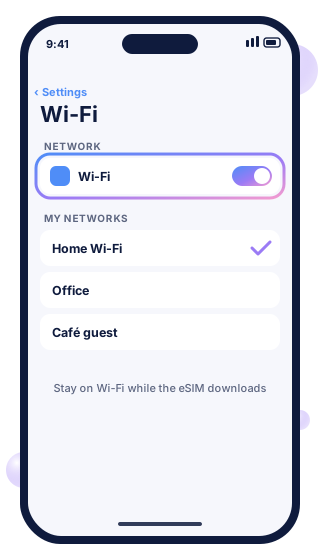
Connect to Wi-Fi
The eSIM downloads over the internet, so join Wi-Fi first (or another phone's hotspot). Apple says you need Wi-Fi or a hotspot to set up eSIM.
 Step 2
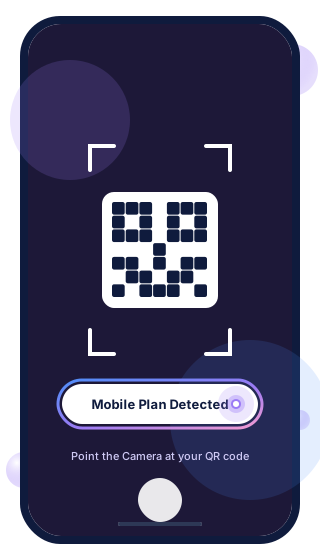
Scan the QR code
Open the Camera app and point it at the QR code from your provider, shown on another screen or printed. Tap Mobile Plan Detected when it appears. On iOS 17.4 or later you can also press and hold a QR code in an email and choose Add eSIM.
 Step 3
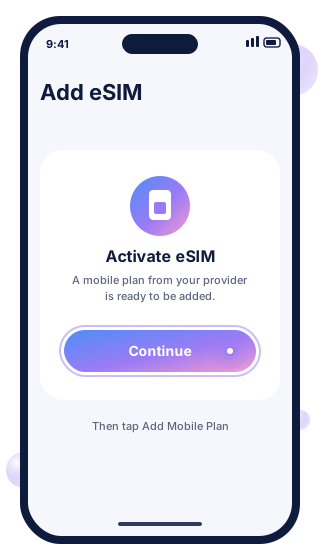
Add the plan
Tap Continue, then Add Mobile Plan. If your provider gave you a confirmation code, enter it when asked.
 Step 4
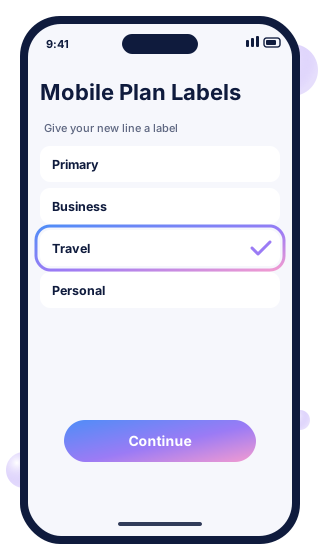
Label your new line
Give it a name you'll recognise, such as Travel, so it's easy to tell apart from your UK number.
 Step 5
Turn on Data Roaming (travel eSIMs)
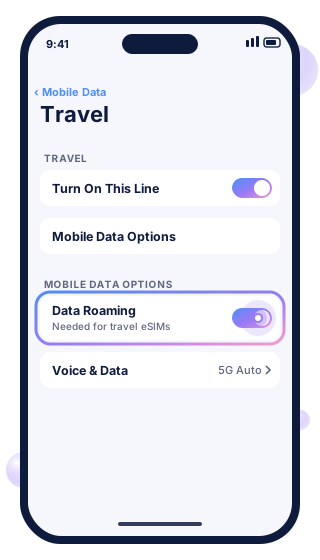
When you land, go to Settings > Mobile Data, tap your travel line, check Turn On This Line is on, then open Mobile Data Options and turn on Data Roaming. Travel eSIMs need this to connect.
 Step 6
Choose it for mobile data
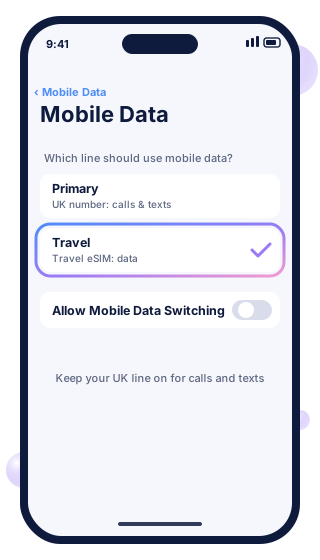
Back in Settings > Mobile Data, tap Mobile Data and pick the travel eSIM. Keep your UK line on for calls and texts, but turn data roaming off for it.
 Step 1
Connect to Wi-Fi
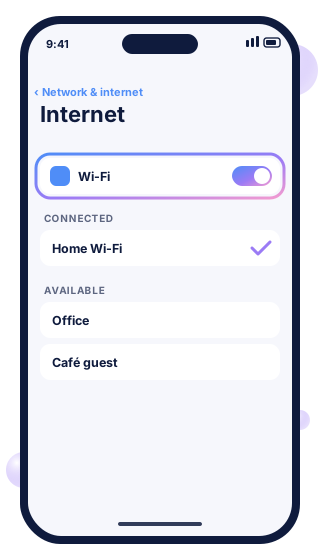
Join Wi-Fi before you start, because the eSIM downloads over the internet.
 Step 2
Add an eSIM
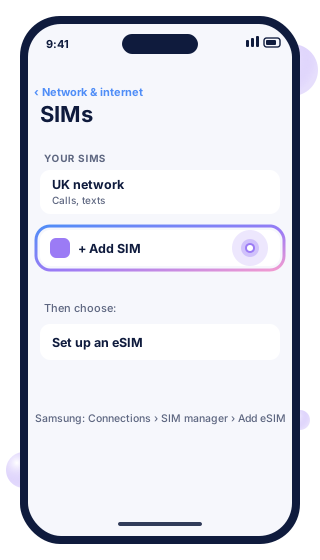
On a Pixel, go to Settings > Network & internet > SIMs, tap Add SIM, then Set up an eSIM. On Samsung, go to Settings > Connections > SIM manager and tap Add eSIM.
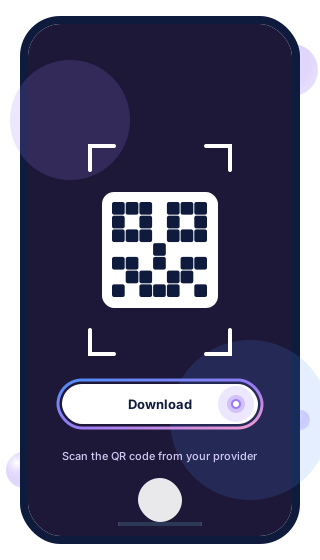 Step 3
Scan the QR code
Scan the code from your provider and follow the on-screen steps to download it. On Samsung, choose Scan QR code.
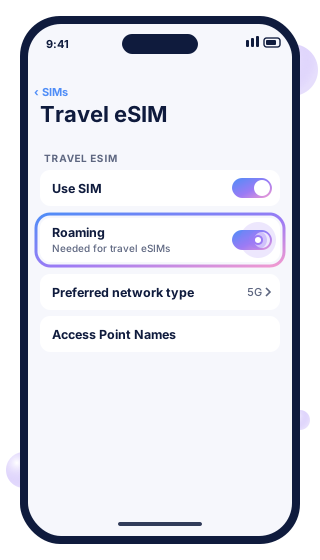 Step 4
Turn on the SIM and roaming
When you land, open the eSIM's settings and turn on Use SIM and Roaming. On Samsung, Data Roaming is in Connections > Mobile networks.
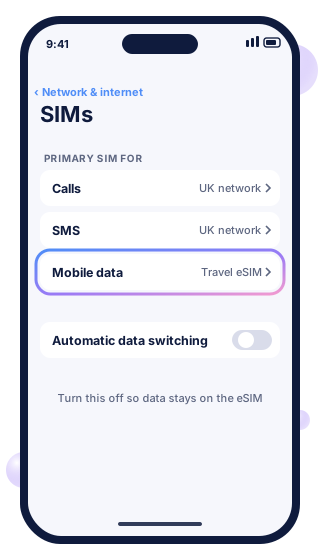 Step 5
Choose it for mobile data
On the SIMs screen, tap Mobile data and pick the travel eSIM. Turn off Automatic data switching so data stays on the eSIM, and leave calls and texts on your UK SIM.
Illustrations are simplified to show where to tap. Menu names can vary slightly by phone model and software version.
Can't scan the code? Enter the details by hand
iPhone
- Go to Settings > Mobile Data > Add Mobile Plan (or Add eSIM).
- Tap Enter Details Manually at the bottom.
- Type in the details from your provider.
Android (Google Pixel)
- Go to SIMs > Add SIM > Set up an eSIM.
- Follow the on-screen options to enter the details instead of scanning.
Samsung Galaxy
- In SIM manager > Add eSIM, choose Enter activation code.
- Type in the code from your provider.
Travel tips
- Install at home, switch on abroad. Set the eSIM up on Wi-Fi a day or two before you fly. If your plan starts when it first connects, leave the line off until you land.
- Keep your UK SIM on for calls and texts, including bank codes, but turn data roaming off for it. See how to turn off data roaming.
- No connection when you land? Work through our travel eSIM fixes.
- Not sure how much data to buy? Try our data usage calculator.
Need a travel eSIM?
Data eSIMs for 27 destinations, set up before you fly. Keep your UK number for calls and texts.
FAQs
Can I reuse the same eSIM QR code?
Usually not. Most QR codes work once. If you delete the eSIM or change phone, ask your provider for a new one.
Can I have more than one eSIM on my phone?
Yes. Most eSIM phones can store several eSIMs, though usually only one or two can be active at the same time.
Do I need to remove my physical SIM?
No. You can keep your normal SIM in the phone and use the eSIM alongside it, which is how most people use a travel eSIM.
Where do I get the QR code?
From whoever sold you the plan. Travel eSIM providers email it after purchase, and UK networks send it when you order an eSIM.
Steps checked on 2 November 2026 against official help pages: Apple: set up eSIM · Google Pixel help · Samsung UK: eSIM. Menu names can vary slightly by phone model and software version.